Account security
Turn on two-step verification, manage your password and sessions, and create personal access tokens.
Your account is personal. These settings keep it that way. All of them are under Profile in your account menu.
Turn on two-step verification
Two-step verification asks for a 6-digit code from an authenticator app each time you sign in. Turn it on, especially if you are an Owner, Admin, or Release manager.
- Open your account menu, then Profile → Login & security.
- Under Two-step verification, click Turn on two-step verification.
- Add the secret to your authenticator app, then type the 6-digit code to confirm.
- Save the recovery codes somewhere safe. They are shown only once, and each can be used once if you lose your authenticator.
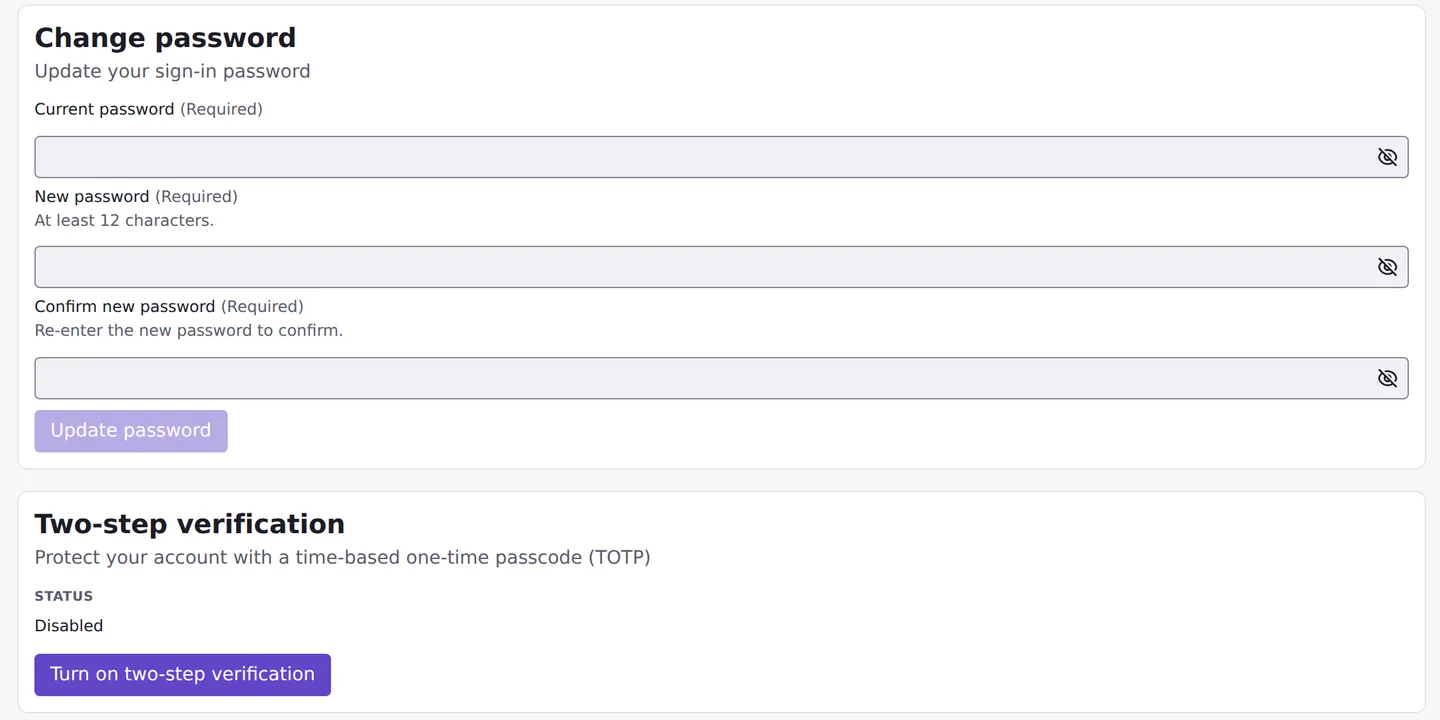
Profile → Login & security.
Some administrative actions, such as inviting people, granting roles, and changing single sign-on settings, need a session that passed two-step verification.
Password and sessions
On the same page:
- Change password: the new password must be at least 12 characters.
- Where you’re signed in: your active sessions. Each lasts up to an hour. Use Sign out to end one you no longer use.
- Recent sign-ins: successful sign-ins to your account in the last 90 days.
If you see a sign-in you do not recognize, change your password and tell your administrator.
Personal access tokens
Tokens let the IntegraCI CLI and your automation act as you.
- Open Profile → Personal access tokens.
- Enter a Token name you will recognize later, and choose when it Expires. Shorter is safer.
- Click Create token.
- Copy the token immediately. It is shown only once. Treat it like a password.
- Use Revoke when you no longer need a token.

Revoking a token stops it working but does not undo what it already did. Check the audit log if in doubt.
Good practice
- One person, one account. Shared logins make it impossible to tell who did what.
- Never share secrets. No passwords or tokens in chat, tickets, emails, commits, or AI tools.
- Use short-lived tokens, and revoke the ones you no longer use.
Next
If you administer your organization, see Administer your organization.