Build, deploy, promote
What happens after a service is set up, where to follow it, and how a version moves to Production.
Once a service is set up, every change follows the same path: your CI builds it, a stage runs it, and the same image moves from stage to stage until it reaches Production.
The service page
Every service has its own page under Services → Catalog. Actions such as Promote and Settings sit at the top, with tabs for Delivery, Quality, Security, Operations, and Docs below.

The Overview tab shows a Getting started checklist of what is set up and what still needs attention, and Path to Production: the version running in each stage.

Path to Production shows the version in each stage.
From a push to Production
| Step | What happens | Where to look |
|---|---|---|
| Build | A push to the tracked branch runs the pipeline in your CI: build, test, scan, and store the image. | Delivery → Pipelines, or the service’s Delivery tab |
| Deploy | How the first stage is deployed depends on the delivery option chosen when the service was added. See When does the first deploy happen? | The service page, or Delivery → Deployments |
| Promote | Someone allowed to deploy to the next stage moves the same image there with Promote. A stage can limit this to specific roles. Nothing is rebuilt. | The service page, Path to Production |
| Approve | Production promotions need approval from someone other than the requester, unless solo-admin mode is on (see Roles and approvals). | Home → Waiting for your decision |
| Operate | Health, logs, metrics, releases, and findings. | The service page tabs: Quality, Security, Operations |
Production gates on the service page show the checks a promotion to Production must pass, and which of them would refuse it right now. Fix what a gate reports before you ask for the promotion.
Delivery at a glance
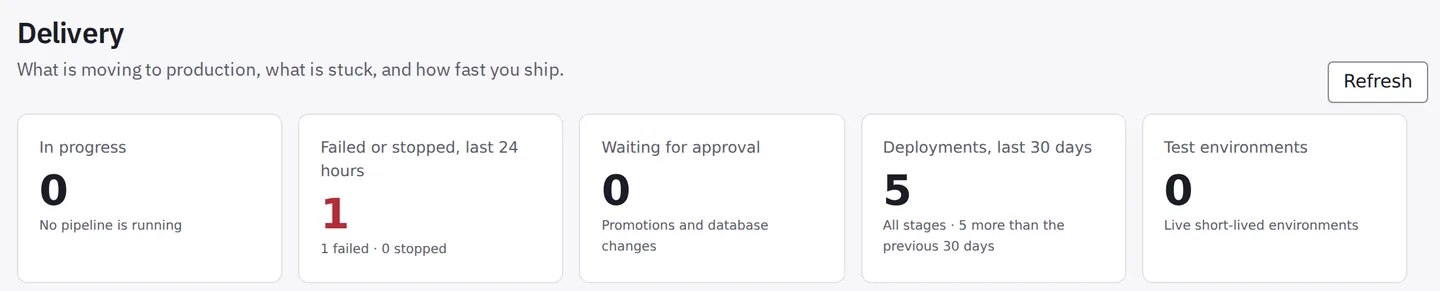
Delivery → Overview shows what is moving to Production across all services: what is in progress, what failed or stopped in the last 24 hours, what is waiting for approval, and recent deployments. Needs attention lists failed runs, waiting approvals, and failed or rolled-back deployments among the most recent ones, with details where available.
Good practice
Deploy and promote from IntegraCI, not by changing the tools directly, so approvals and the audit trail stay complete. Clean up services you created only to try things out.
Next
Secure your own account: Account security. For how deploys work across targets, see Deploy a service.