Administer your organization
Invite people and choose their roles, set the platform up once, and offboard people who leave.
These tasks are for Owners and Admins. Some of them need a session that passed two-step verification; see Account security.
Invite people
- Open your account menu, then Organization → Members & access.
- Click Invite members.
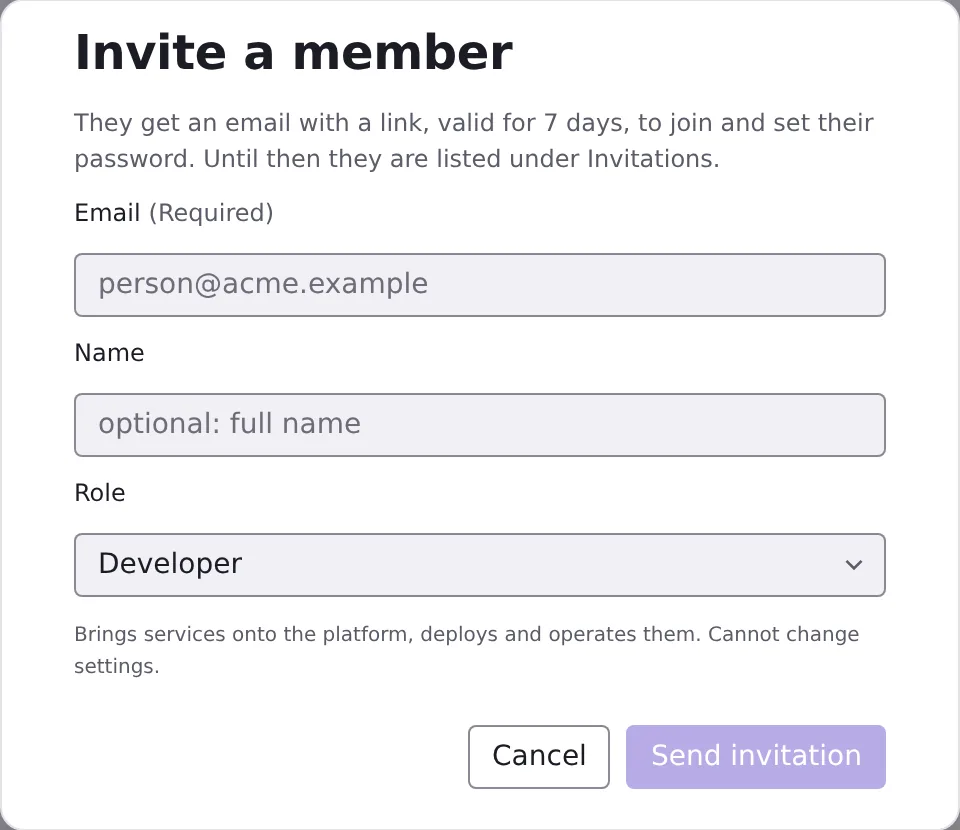
- Enter the email and, optionally, the name, and choose the Role. The dialog explains what the role can do; see Roles and approvals for all of them.
- Click Send invitation.
The person gets an email with a link, valid for 7 days, to join and set their password. Until then they are listed under Invitations. If the link expires, send a new invitation.
Set up the platform once
Settings → Setup & readiness walks you through guided steps, once. After that, engineers and partners onboard their services themselves.
Two questions at the top, Where do your tools live? and Where do your apps run?, decide which steps you need. For example, the bridge step becomes required when your tools or your apps live in a private network that IntegraCI cannot reach directly. The steps are:
- Connect your toolchain
- Reach private tools with a bridge
- Register where your apps run
- Map environments to targets
- Install your toolchain on your infrastructure
- Invite your team
- Choose a secrets backend (optional)
- Set onboarding policies
- Your team onboards: done once a service has been onboarded
Optional steps do not count towards the progress shown at the top.
Each step shows whether it has passed. Start or Review opens it, and many steps have a What’s this? explanation.
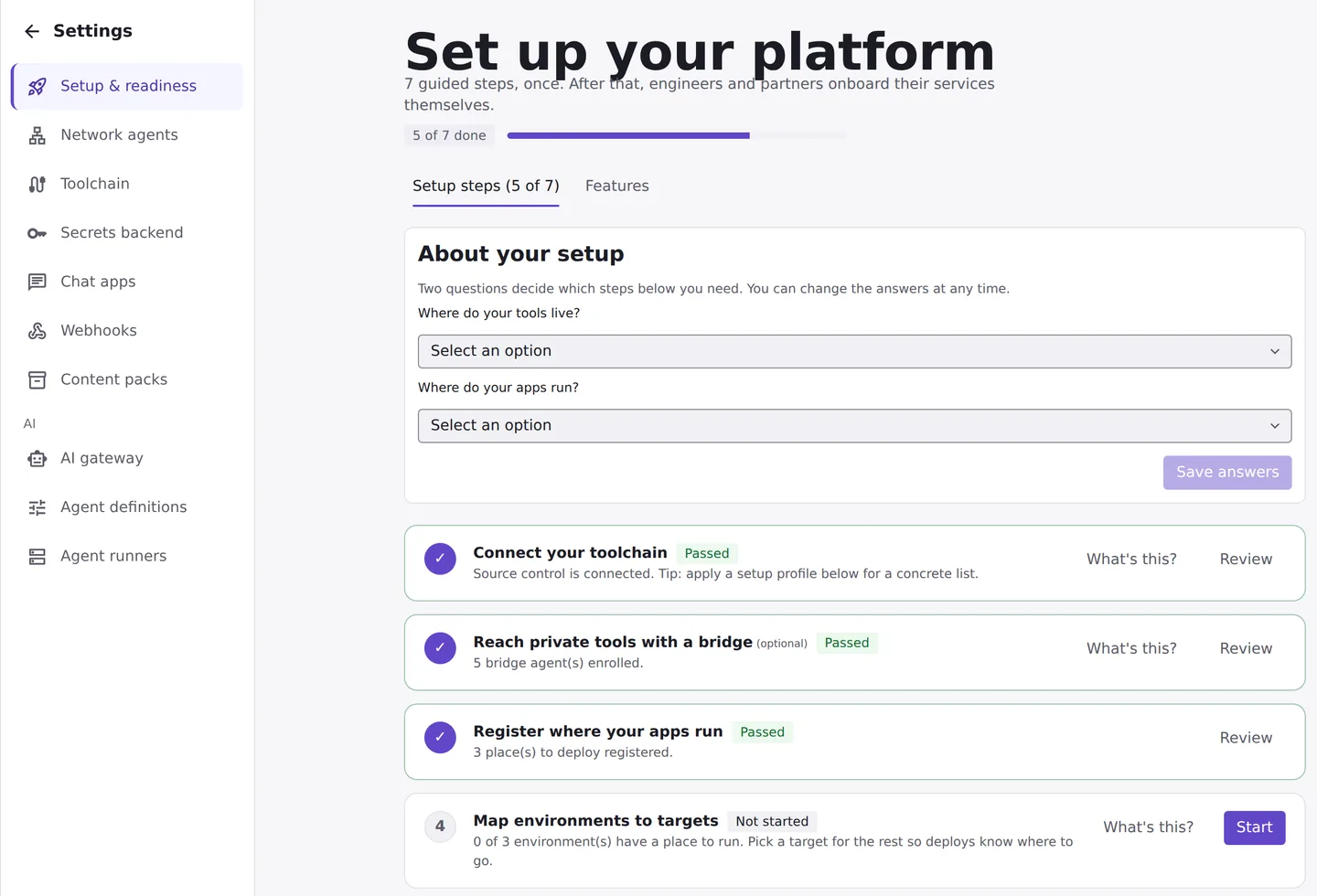
Settings → Setup & readiness.
Offboarding
When someone leaves, open Members & access and choose Manage on their row. Two actions end their access:
| Action | What it does |
|---|---|
| Deactivate | Suspends the account and its personal access tokens. Reactivate brings both back. Use it for a temporary absence. |
| Remove | Removes the person from the organization and revokes their personal access tokens for good. Use it when someone leaves. |
IntegraCI refuses to remove the last active Owner, or the last active member who is an Owner or Admin, so the organization is never left without one. Revoking a token stops it working but does not undo what it already did; check the audit log if in doubt.
Next
For the broader picture of what administration covers, see the Administer overview.